

Hur kan jag ställa in min Wayke-integration?
Om Wayke
Wayke.se är en svensk marknadsplats för köp och försäljning av bilar. Det är en plattform där privatpersoner och bilhandlare kan lägga ut sina fordon till försäljning och komma i kontakt med potentiella köpare.
Begär integration
Du kan begära Wayke-integrationen från vår plattform genom att följa dessa steg:
1. Logga in:
Logga in på ditt konto på app.autopix.no.
2. Öppna integrationer:
Gå till fliken Integrationer i sidomenyn.
3. Begär integration:
Klicka på Anslut -knappen under Wayke-logotypen.
4. Slutför avtalet:
Läs och godkänn Wayke-avtalet genom att markera kryssrutan i slutet av formuläret.
5. Aktivera:
Klicka på Aktivera integration -knappen för att gå vidare.
6. Invänta bekräftelse:
Du kommer att få en bekräftelse på att din integrationsförfrågan har skickats vidare till Wayke för godkännande.
Godkännande
- Klient-ID och klientnyckel genereras och skickas direkt till dig av Wayke.
- Följ länken i mejlet från Wayke.
- Kopiera klient-ID och klientnyckel.
- Klicka på Godkänn -knappen på sidan för integrationer.
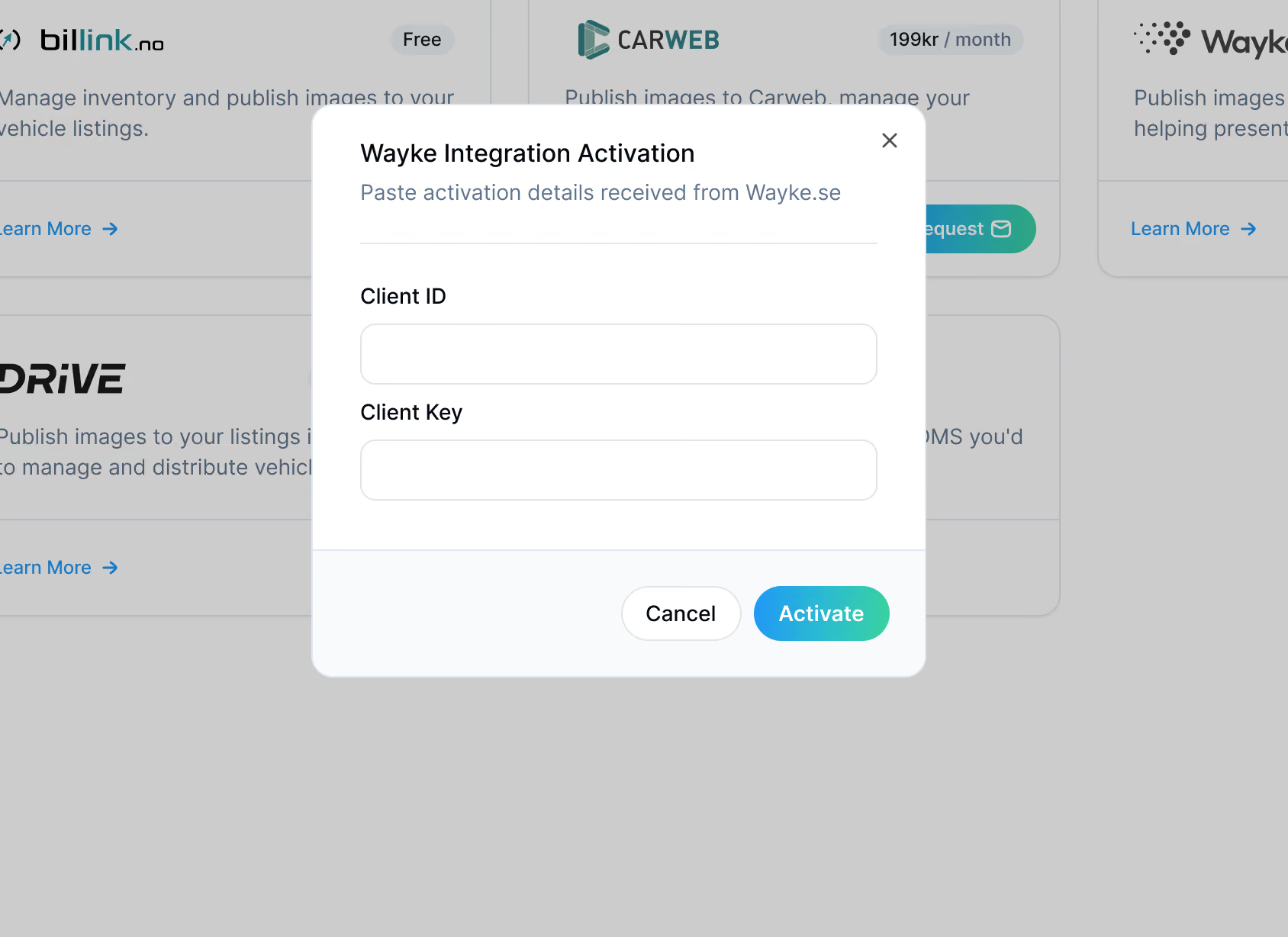
- Klistra in klient-ID och klientnyckel i formuläret.
Om Wayke
Wayke.se är en svensk marknadsplats för köp och försäljning av bilar. Det är en plattform där privatpersoner och bilhandlare kan lägga ut sina fordon till försäljning och komma i kontakt med potentiella köpare.
Begär integration
- Logga in på ditt konto.
- Tryck på Mer i navigeringsfältet längst ner.
- Tryck på Integrationer.
- Du skickas vidare till vår webbplattform för att slutföra din begäran.
- Klicka på knappen Anslut under Wayke-logotypen.
- Läs igenom och godkänn Waykes avtal genom att markera kryssrutan längst ner i formuläret.
- Klicka på Aktivera integration -knappen för att fortsätta.
- Du får en bekräftelse på att din integrationsförfrågan har skickats vidare till Wayke för godkännande.
