

How to create a new template?
Providing clear, detailed template helps ensure your images reflect your brand consistently.
- Log in to your account.
- Click Templates in the sidebar.
- Click New Template at the top of the page.
- Choose an image size (5400 × 3600 px is recommended).
- Choose preferred category and select background and floor of your choice.
- Choose whether to add a logo.
- If you selected the logo add-on, choose the logo placement on the image.
- Select the license plate add-on, if it's available for your account.
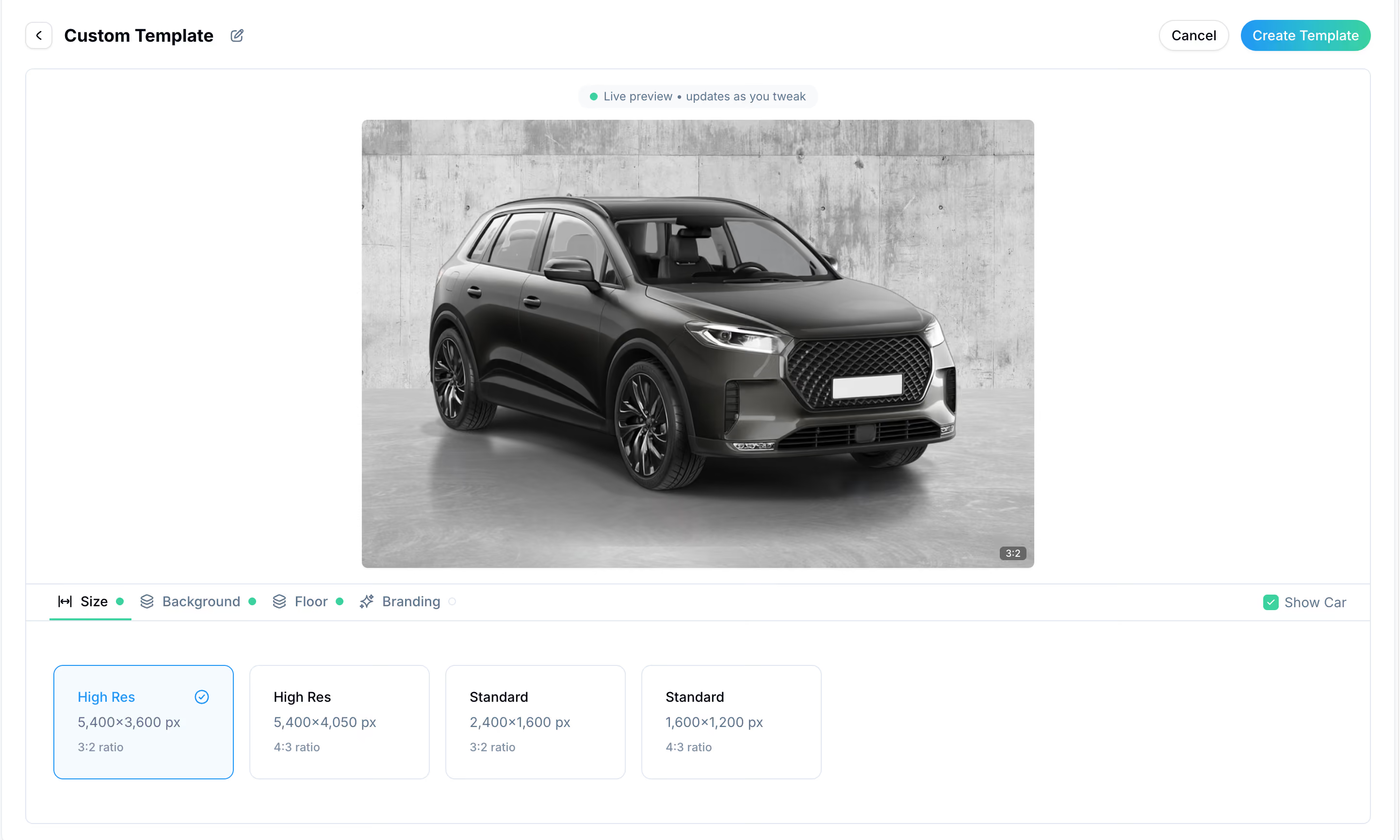
You can create multiple templates in your account and select the one you need when placing a new order.
You can also edit any existing instructions at any time from the Instructions category.
Providing clear, detailed template helps ensure your images reflect your brand consistently.
The app lets you easily create instructions fully compatible with car image editing.
- Log in to your account.
- Click on Templates in the bottom navigation.
- Click Create New Template at the top of the screen.
- Choose from recommended combinations or click Create your own.
- Choose preferred category and select background and floor of your choice.
- Choose an image size (5400 × 3600 px is recommended).
- Choose whether to add a logo.
- If you selected Yes, choose the logo placement on the image.
- Select the license plate add-on, if it's available for your account.
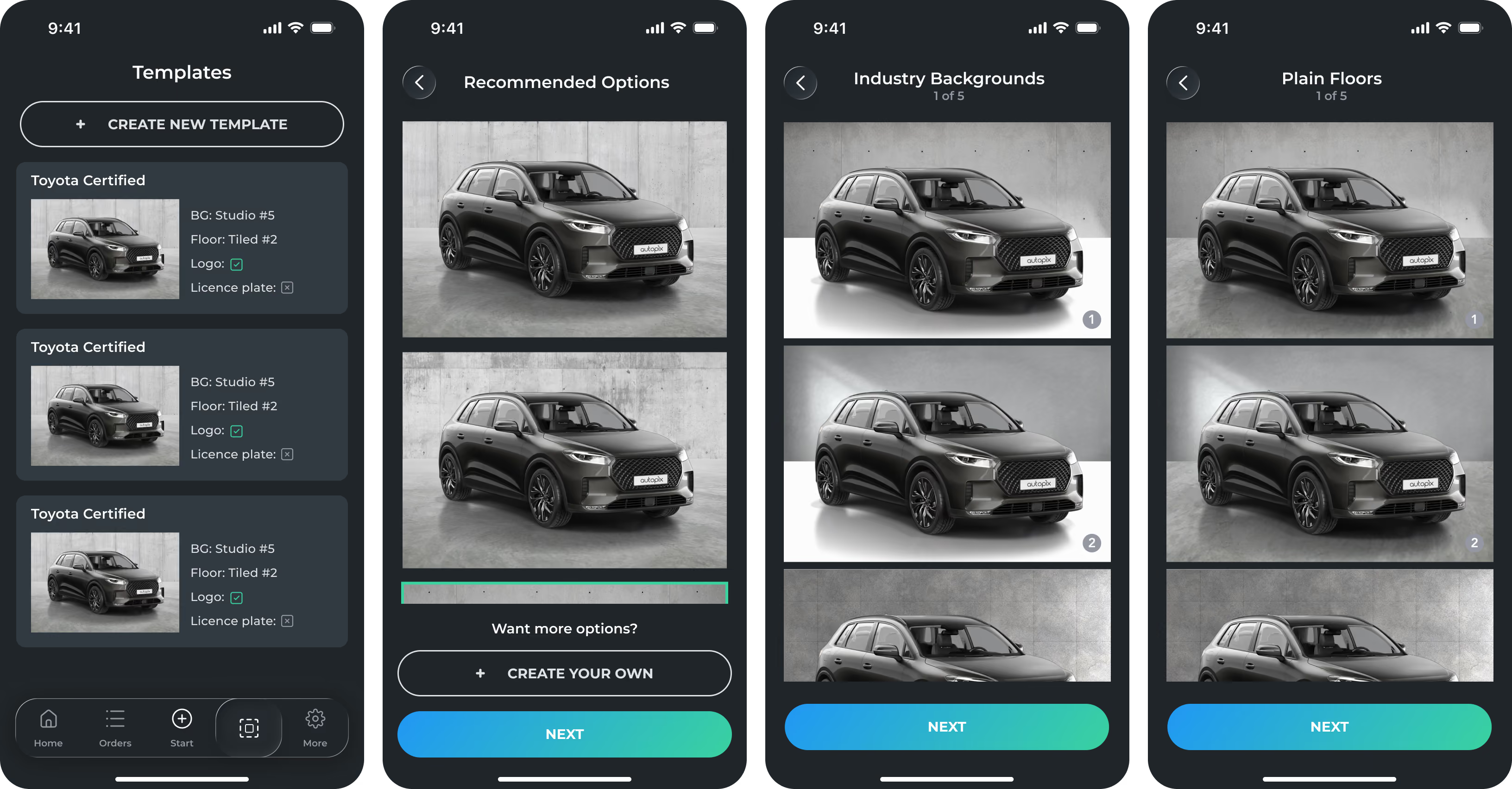
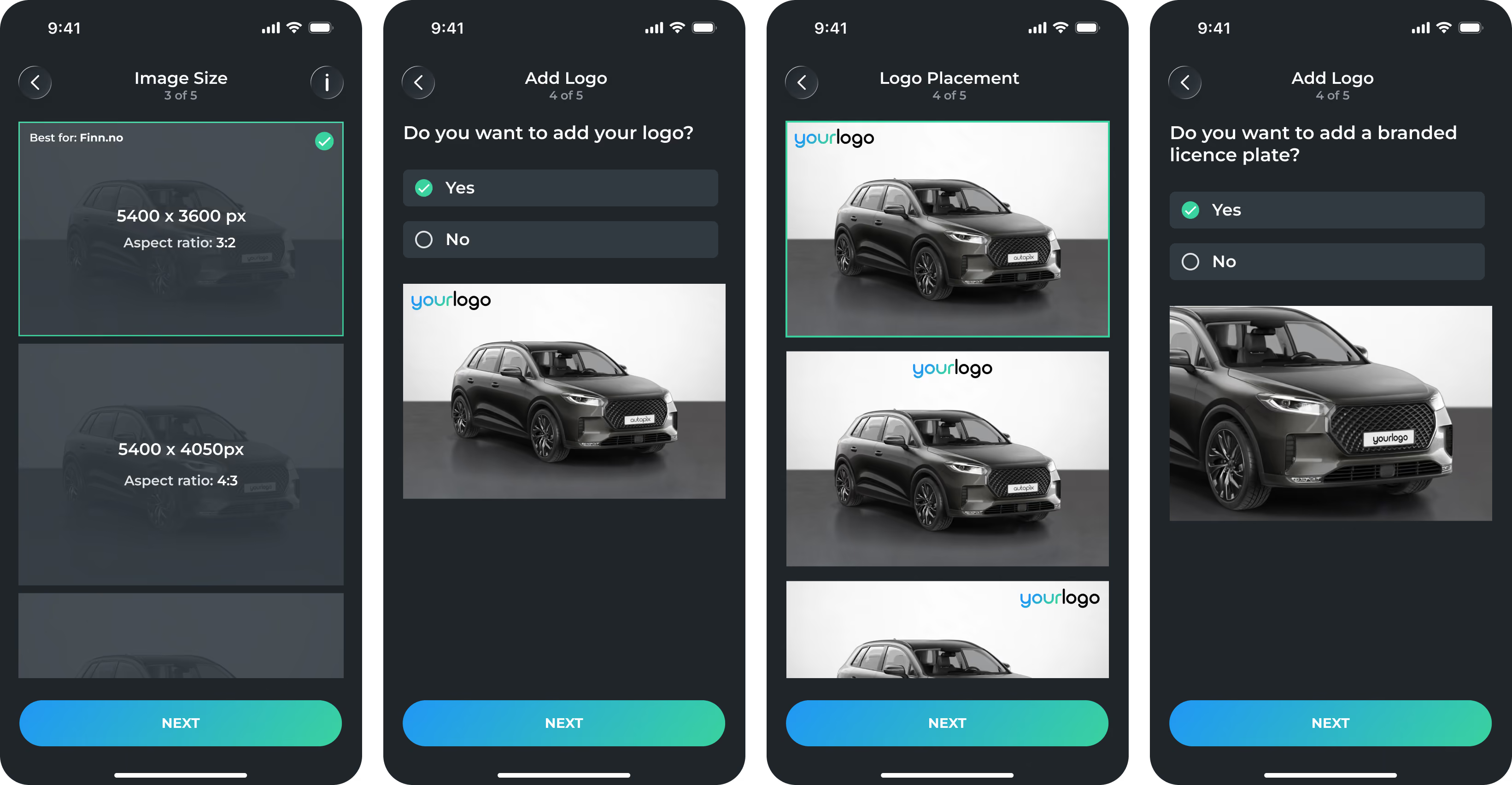
You can create multiple templates in your account and select the one you need when placing a new order.
You can also edit any existing instructions at any time from the templates category.
