

Hvordan kan jeg sette opp Drive-integrasjonen min?
About Drive
Drive.no is a Norwegian online marketplace for buying and selling cars. It provides a platform where individuals and dealerships can list their vehicles for sale and connect with potential buyers.
Requesting the Integration
You can request the Drive integration from our platform by following these steps:
1. Sign In:
Sign in to your account on app.autopix.no.
2. Open Integrations:
Navigate to the Integrations tab in the sidebar.
3. Request Integration:
Click the Connect button under the Drive logo.
4. Complete the Agreement:
Read and complete the Drive agreement by ticking the checkbox at the end of the form.
5. Activate:
Click the Activate Integration button to proceed.
6. Await Confirmation:
You will receive a confirming your integration request has been forwarded to Drive for authorisation.
Authorisation
- The client ID and Client Key will be generated and sent directly to you by Drive.
- Follow the link on your email from Drive.no
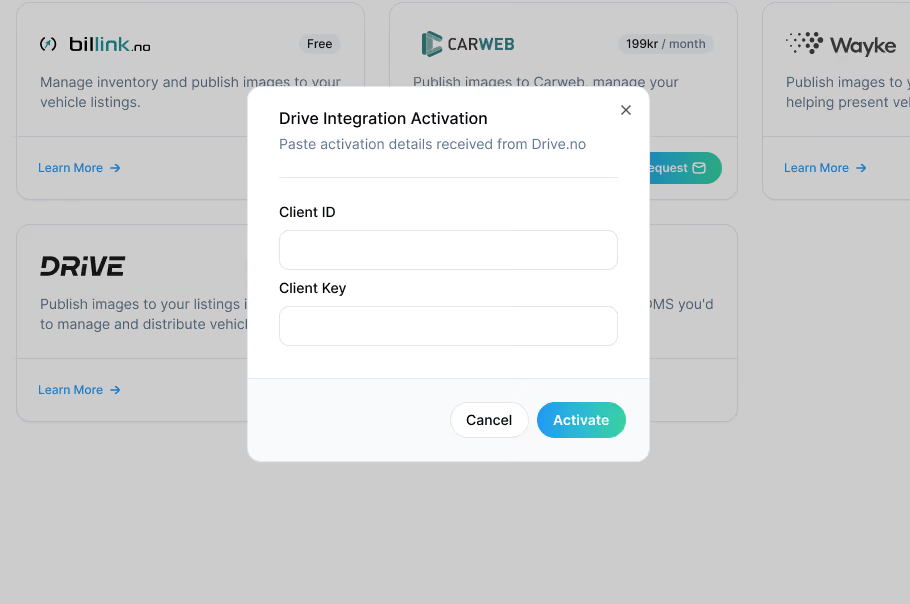
- Copy the Client ID & Client Key
- Click the Authorise button on the Integrations page
- Paste the Client ID & Client Key into the form
About Drive
Drive.no is a Norwegian online marketplace for buying and selling cars. It provides a platform where individuals and dealerships can list their vehicles for sale and connect with potential buyers.
Requesting the Integration
- Sign in to your account
- Tap More on bottom navigation
- Tap Integrations
- You'll be navigated to our web platform to complete your request.
- Click the Connect button under the Drive logo.
- Read and complete the Drive agreement by ticking the checkbox at the end of the form.
- Click the Activate Integration button to proceed.
- You will get a confirming your integration request has been forwarded to Drive for authorisation.
